
TopPlace™ admin panel allows multiple users from the same company to have separate logins. Users can be given specific access to parts of the account depending on their role. People from Finance can be limited to seeing billing information while being prevented from accidentally editing a live project.
If a user creates an account without first being added, they will not be able to see the team's account.
The following details how to add a new user to your team's account.
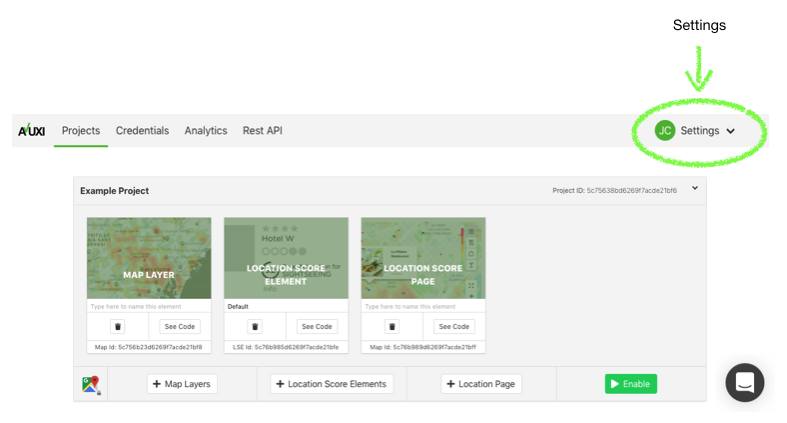
Step 1) Open Settings
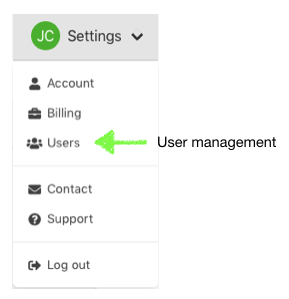
Step 2) Open user management
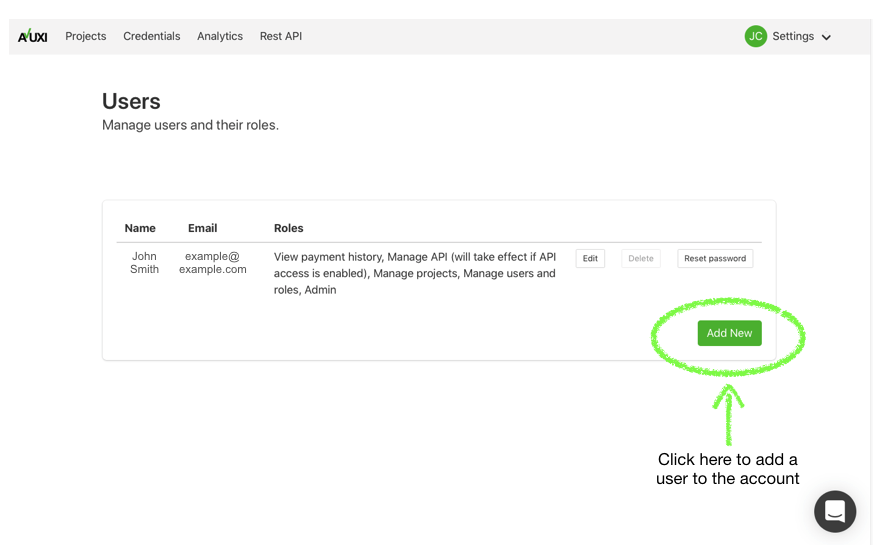
Step 3) Open add user
Step 4) Add the new user details
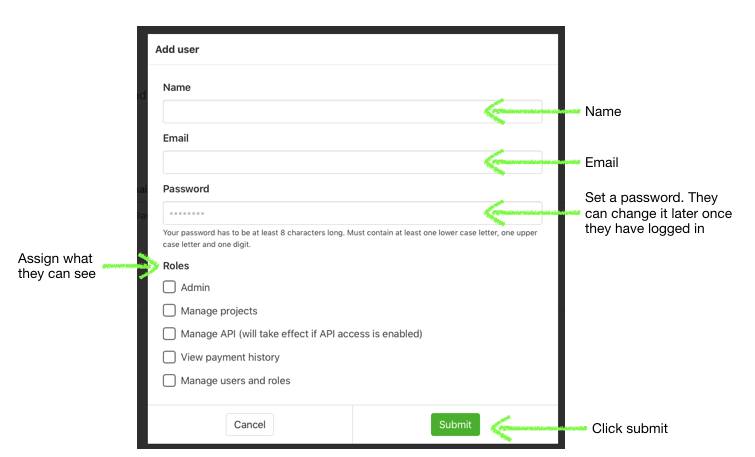
Roles available:
- Admin: General access. Allows a user to view projects as well as
- Manage Projects: Ability to create new projects and edit existing projects. This includes creating new and editing plug & play widgets.
- Manage API: If the API is enabled, allows the user to view and manage API access as well as view the API key.
- View payment history: Makes payment history, including invoices, visible.
- Manage users and roles: Enables this user to add new users to the account as well as manage permissions of other users
The new user will receive an email with instructions on how to log in.
Step 5: New user logs in within 3 days
The final step requires the user to log into the account within 3 days of receiving the email. Once logged in, their account will be activated.
Trouble Shooting:
Q: I can't see the users button in settings!
A: You do not have permissions to add or edit users. Contact your account administrator.
Q: Who is my account administrator?
A: Normally the account administrator is the first person to create an account with TopPlace™. If you are unaware of who that is, please contact support@avuxi.com
Q: A person has left the company. How do I remove them from the account?
A: Contact your account administrator or a person who has user edit privileges.
If you have any issues with adding team members to your TopPlace™ account, please contact support@avuxi.com