
Heat Map: Style your menu or build your own menu
TopPlace™ provides a number of different menu and button options for the Heat Map. However many sites have specific style requirements that need to be accommodated.
TopPlace™ enables your site to customize the menu and buttons through 2 different methods.
Option 1: Style the menu & buttons through CSS.
The fastest and most simple option is to adjust the buttons through the CSS.
Option 2: Build your own menu & buttons.
Building your own menu & buttons provides complete freedom to design an experience to fit with your site.
A step by step guide to both options are detailed below.
Option 1: Style the buttons & menu through CSS
Use one of our plug & play menus, but customise it through the CSS.
Most of our clients choose a plug & play menu and then style them through the CSS.
Step 1: Open the project properties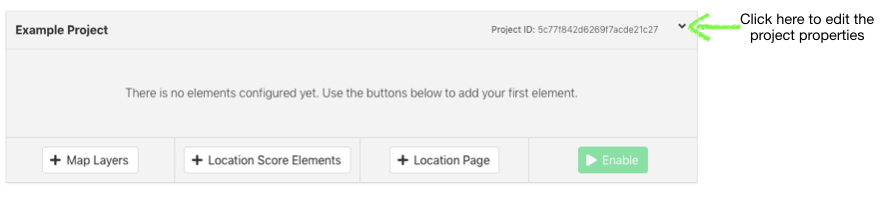
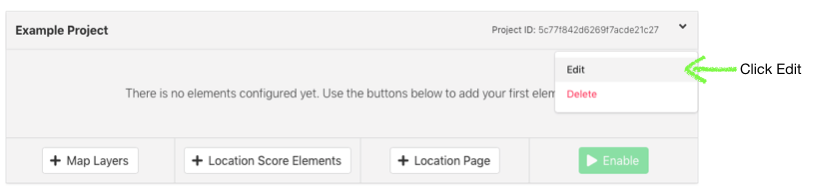
Step 2: Click Edit
Step 3: Add your own CSS ¡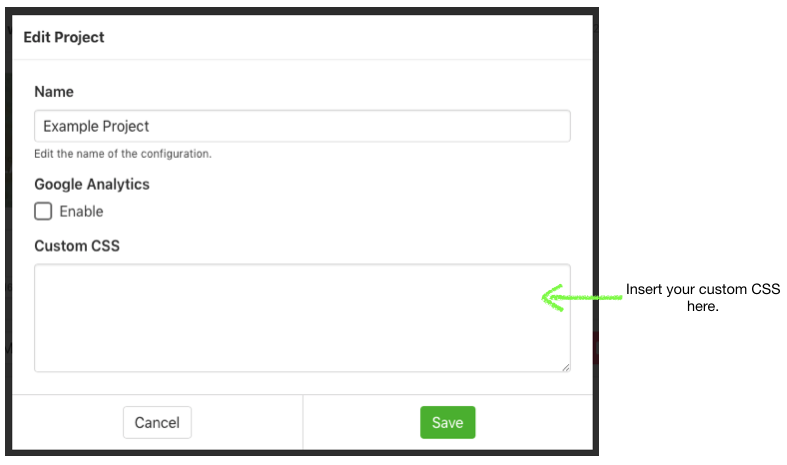
You now have a custom styling on your menu & buttons. If you have any issues, please contact support.
Option 2: Build your own menu & buttons
Use a plug & play Heat Maps with your own, custom-built menu & buttons.
Some sites will want a specific structure of the menu not available in the plug & play options. If so, the site will need to build their own buttons.
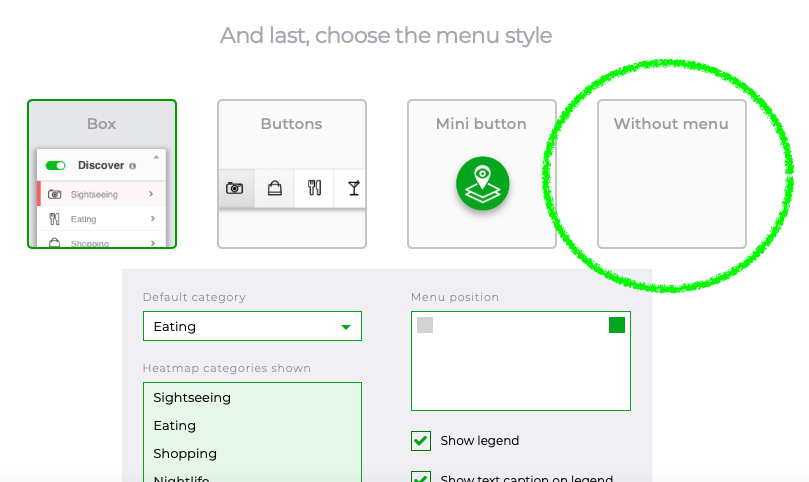
Step 1: Create a Heat Map and select "no menu".
Follow the Heat Map creation and styling guide to setup your Heat Map.
IMPORTANT: When selecting a menu in step 4, select "without menu".
Step 2: Integrate the Heat Map as usual
Follow the integration guide to integrate the Heat Map into the page.
Step 3: Build a custom menu & add AVUXI listeners to the buttons.
Once you have designed and built your custom menu, add the AVUXI listener to the buttons to control the Heat Map. It is done through 1 function:
AVUXI.MapHMChange(map,code,
- map => map object (e.g. googlemap ID)
- code => Map ID from your AVUXI project.
- hmCategory => phsights, vrestaurant, vshopping, vnightlife (note: these are strings)
To clear the Heat Map, either repeat the hmCategory (i.e. click the button again) or leave hmCategory as an empty string: "" .
The Heat Map is initialized in the integration code from step 2.
You now have a custom-built menu & buttons. If you have any issues, please contact support.