
Create a Heat Map layer for your map
The following steps will result in a script that will enable integration of a TopPlace™ Heat Map into your site. Ensure you have configured your domain (as explained in Setup your domain) before starting the integration.
Further information on the integration process can be found at Heat Maps Integration.
Firstly, go to the script in which you will be adding the Heat Map and click on “Add HeatMap”:
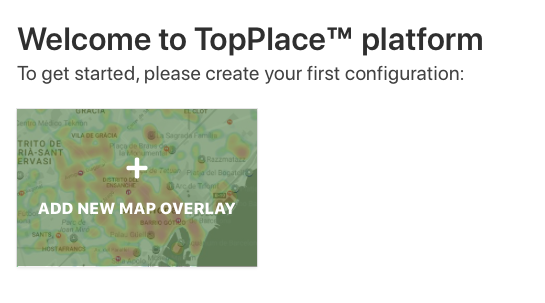
On the initial welcome page:
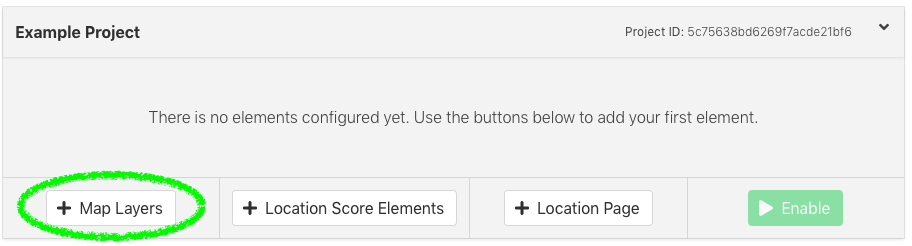
Within a project:
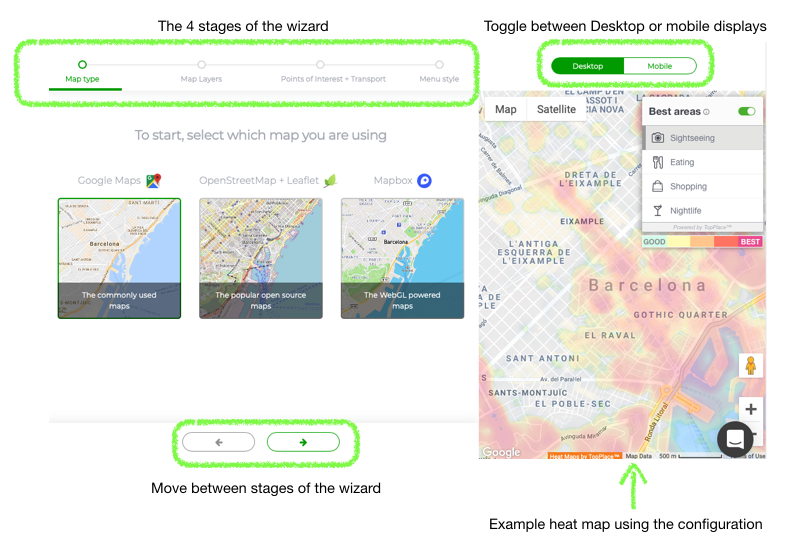
The Heat Map Wizard
Once opened, the Heat map wizard will display the following
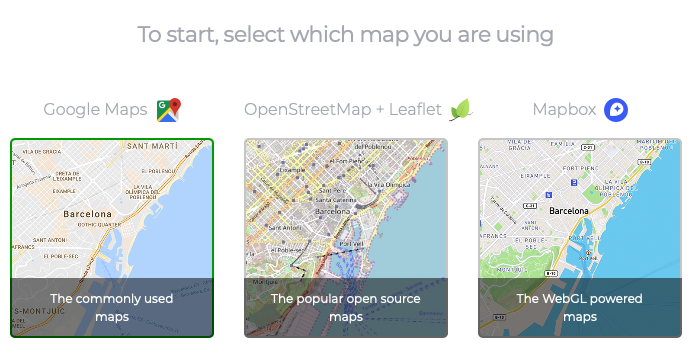
Step 1: Select a map
Step 2: Map Layers
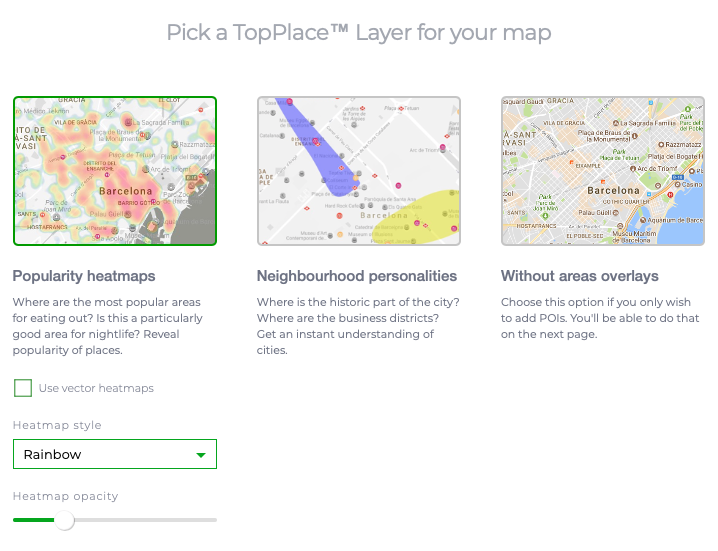
Step 3: Points of Interest + Transport
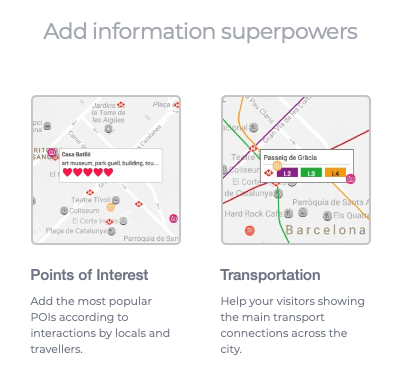
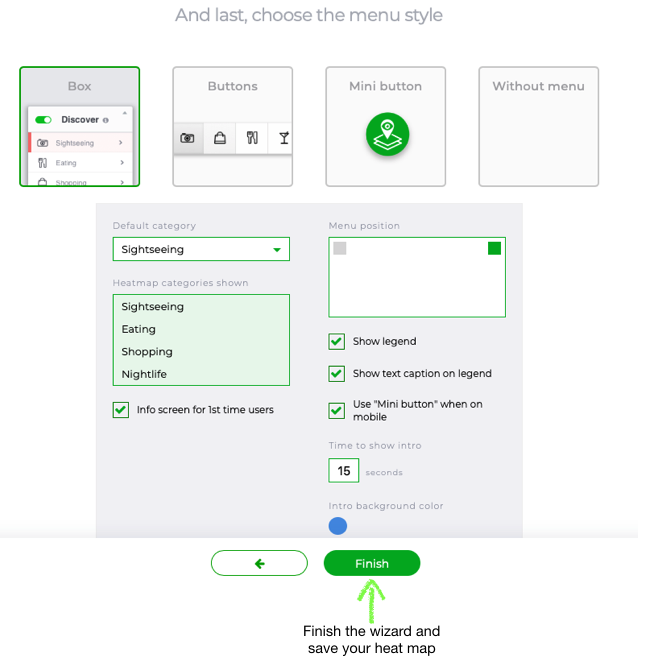
Step 4: Menu Style
Next you will select the type of menu for the Heat Map.
Here are the different menu options:
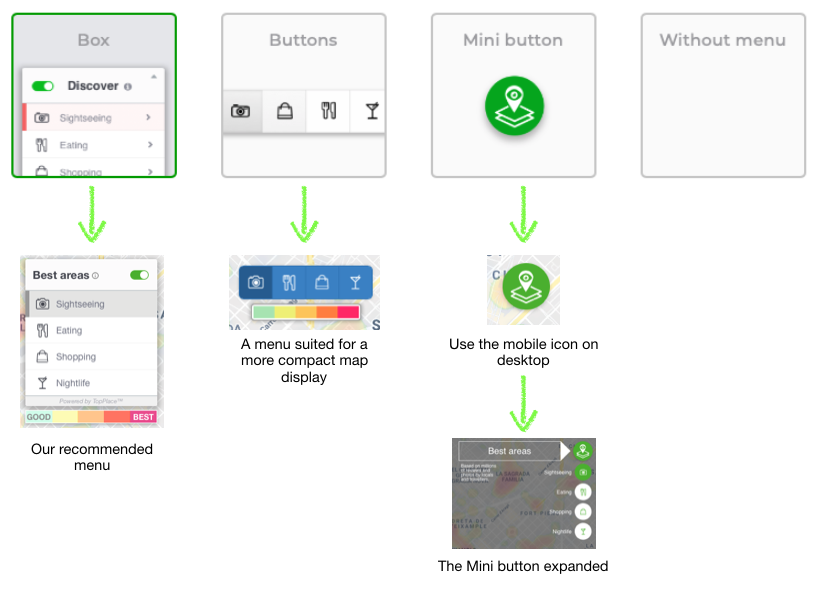
The individual menus will be customisable.
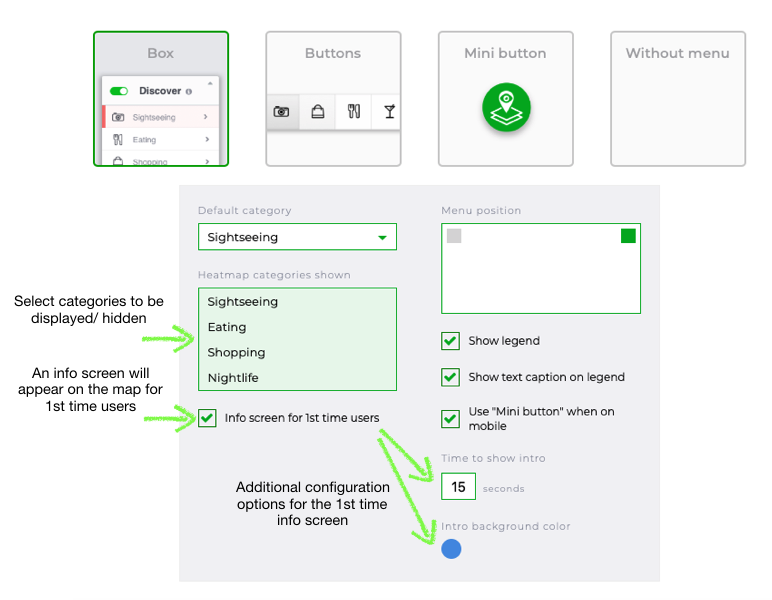
FINISH
now to finish the wizard:
Remember to click “Publish” once you are satisfied to enable your widget.
Note that any change published in the system takes about 10 minutes to apply across all configured sites. If one of your customers has loaded an old script it might take about 20 hours until the cache is cleaned and new configuration applied.
Integrations
Typical Integration code for Heat Maps should look something like this:
<html>

<head>
  <title>AVUXI Widget Demo</title>
  <meta content="text/html; charset=UTF-8" http-equiv="Content-Type" />
  <style>
    #map_canvas {
      position: fixed !important;
      overflow: hidden !important;
      top: 15px;
      left: 20px;
      right: 20px;
      bottom: 20px;
      border-radius: 4px;
      border: 5px solid white;
    }
  </style>
</head>

<body onload="LoadMap();" style="background-color: gray;">
  <div id="map_canvas" style="position: fixed;overflow: hidden;top: 15px;left: 20px;right: 20px;bottom: 20px;border-radius: 4px;border: 5px solid white;"></div>
  <script type='text/javascript' src='https://maps.googleapis.com/maps/api/js?sensor=false&key=[GOOGLE_API_KEY]'></script>

  <script type='text/javascript'>
    var map;

    function LoadMap() {
      var myOptions = {
        zoom: 10,
        center: new google.maps.LatLng(41.38605, 2.17014),
        mapTypeId: google.maps.MapTypeId.ROADMAP
      };
      map = new google.maps.Map(document.getElementById('map_canvas'), myOptions);

      var sc = document.createElement('script');
      sc.id = 'vxscript';
      sc.type = 'text/javascript';
      sc.async = 'async';
      sc.src = 'https://m.avuxicdn.com/v3/s/[AVUXI_PROJECT_ID]/en?callback=avapil';
      document.body.appendChild(sc);
    }

    function avapil() {
      AVUXI.MapStart(map, '[AVUXI_MAP_ID]');
    };
  </script>
</body>

</html>
Head
In the head, we can find meta-data and css styling options:
<head>
<title>AVUXI Widget Demo</title>
<meta content="text/html; charset=UTF-8" http-equiv="Content-Type" />
<style>
#map_canvas {
position: fixed !important;
overflow: hidden !important;
top: 15px;
left: 20px;
right: 20px;
bottom: 20px;
border-radius: 4px;
border: 5px solid white;
}
</style>
</head>
You can remove the meta-data tags ( title and meta) as they are not necessary for the function of the widget. You may wish to replace them with your own meta-data to improve your pages SEO.
The styling information can be moved to an external CSS file if you wish to streamline your html file. It is not recommended to change any of the positioning CSS properties (position, overflow, top, left, right, bottom) As editing these can change the appearance of the widget. However the design can be edited to better fit the appearance of your site by adding CSS properties. For a list of CSS properties see here: https://www.w3schools.com/cssref/
Body
Within the body we find the map element and the scripts that run it:
<body onload="LoadMap();" style="background-color: gray;">
<div id="map_canvas" style="position: fixed;overflow: hidden;top: 15px;left: 20px;right: 20px;bottom: 20px;border-radius: 4px;border: 5px solid white;"></div>
<script type='text/javascript' src='https://maps.googleapis.com/maps/api/js?sensor=false&key=[GOOGLE_API_KEY]'></script>

<script type='text/javascript'>
var map;

function LoadMap() {
var myOptions = {
zoom: 10,
center: new google.maps.LatLng(41.38605, 2.17014),
mapTypeId: google.maps.MapTypeId.ROADMAP
};
map = new google.maps.Map(document.getElementById('map_canvas'), myOptions);

var sc = document.createElement('script');
sc.id = 'vxscript';
sc.type = 'text/javascript';
sc.async = 'async';
sc.src = 'https://m.avuxicdn.com/v3/s/[AVUXI_PROJECT_ID]/en?callback=avapil';
document.body.appendChild(sc);
}

function avapil() {
AVUXI.MapStart(map, '[AVUXI_MAP_ID]');
};
</script>
</body>
The most important part of this code is within the body tag:
<body onload="LoadMap();" style="background-color: gray;">
This piece of code ensures that the function "LoadMap" (the function which generates the TopPlace™ Heat Map layer) does not run until the page and all other elements have loaded. This prevents null reference errors, which occur when javascript tries to edit HTML elements which do not yet exist.
The body tag also includes styling information. This can be edited or removed to the users liking.
The first element is a div element with id "map_canvas". This will be the map widget containing the TopPlace™ Heat Map layer, so place this div in your HTML where you wish the map to be shown on your page. In the example, this div also has styling information attached to it. This information is exactly the same as the styling info shown in the head. It can be treated the same.
After the map_canvas div, the body contains two script elements.
The first script element loads the API for the 3td party map provider (In the example we are using google maps). for help managing this see the official documentation for whichever provider you are using.
The second script element contains the javascript code to initiate the map and then load the TopPlace™ Heat Map layer.
It is crucial to keep the two script tags in the order they are presented. Otherwise the page will try and create a map with a TopPlace™ Heat Map layer before the 3rd party map provider API has been loaded.
Javascript integration
If your page already has a map integrated you may wish to simply add a TopPlace™ Heat Map layer over the top of it. To do this you only need the Javascript code.
First click the "show only JS code".
The javascript code looks something like this:
var sc = document.createElement('script');
sc.id = 'vxscript';
sc.type = 'text/javascript';
sc.async = 'async';
sc.src = 'https://m.avuxicdn.com/v3/s/[AVUXI_PROJECT_ID]/en?callback=avapil';
document.body.appendChild(sc);
function avapil() {
AVUXI.MapStart(map, '[AVUXI_MAP_ID]');
}
The script which includes this javascript should be loaded after the 3rd party map provider has been loaded to prevent null reference errors. Alternatively, the first lines can be nested inside a function which can be called once the page is loaded or on user input:
function LoadTopPlace() {
var sc = document.createElement('script');
sc.id = 'vxscript';
sc.type = 'text/javascript';
sc.async = 'async';
sc.src = 'https://m.avuxicdn.com/v3/s/[AVUXI_PROJECT_ID]/en?callback=avapil';
document.body.appendChild(sc);
}
function avapil() {
AVUXI.MapStart(map, '[AVUXI_MAP_ID]');
}
Third Party Frameworks
Avuxi TopPlace™ products can be used with many third-party frameworks, such as React, Vue and Google web components. For more information, take a look at our Github integrations page