
Once your Heat Map, Location Score Element or Location Page has been set up and styled (as explained in setup and style your Heat Map, Location Score Element or Location Page) you can now proceed to its publication.
The widget will generate a small HTML or JS code that can be inserted into your site. Once published, any further changes to the Heat Map can be completed through the AVUXI admin panel.
Integration
Step 1: Copy the Widget code into your website
To start integration, go to the element you wish to publish and click on “See Code”:
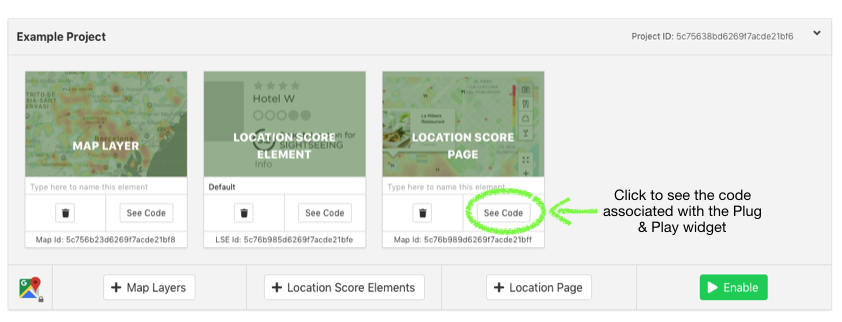
A separated window containing the code will open: copy the core to all pages where you want it to be integrated. You can edit the URL of the code to display Elements in different languages.
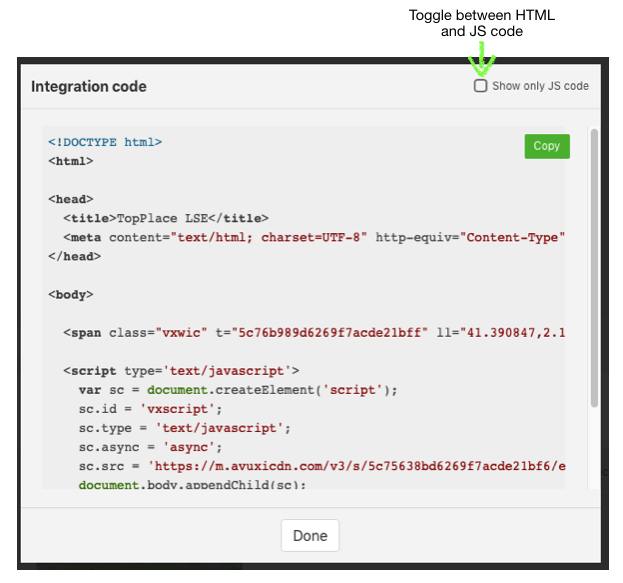
For information on where to put the code on your website, please refer to the Where to Place TopPlace™ Code on your Page article.
Step 2: Publish
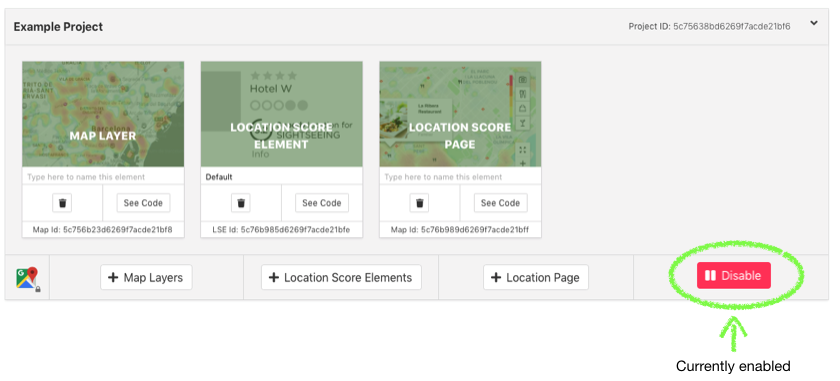
Once the code has been copied to your sites, you need to tell AVUXI to publish the script. Go to the project admin panel and click on the "Enable". It will display as Red if it is live and published.
NOTE: Disabled scripts will not be loaded by a website. It will also not be counted towards any traffic calculations-
Step 3: Further edits
Note that from now on, whenever you edit that specific widget on the AVUXI admin panel, all updates will happen automatically. No need to re-copy any code to your site.
Changes to a published script may require 10-15min to propagate to your site.