
Creating a Location Page
This guide will take you through the process to to create a TopPlace™ Location Page. Ensure you have configured your domain (as explained in Setup your domain) before starting the integration.
To begin, navigate to the projects panel and click "Location Page"
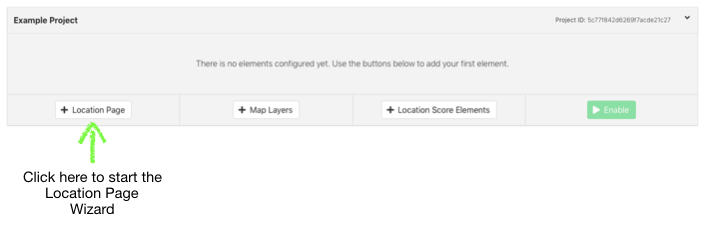
Location Page Wizard
The first page of the wizard allows you to choose between three templates:
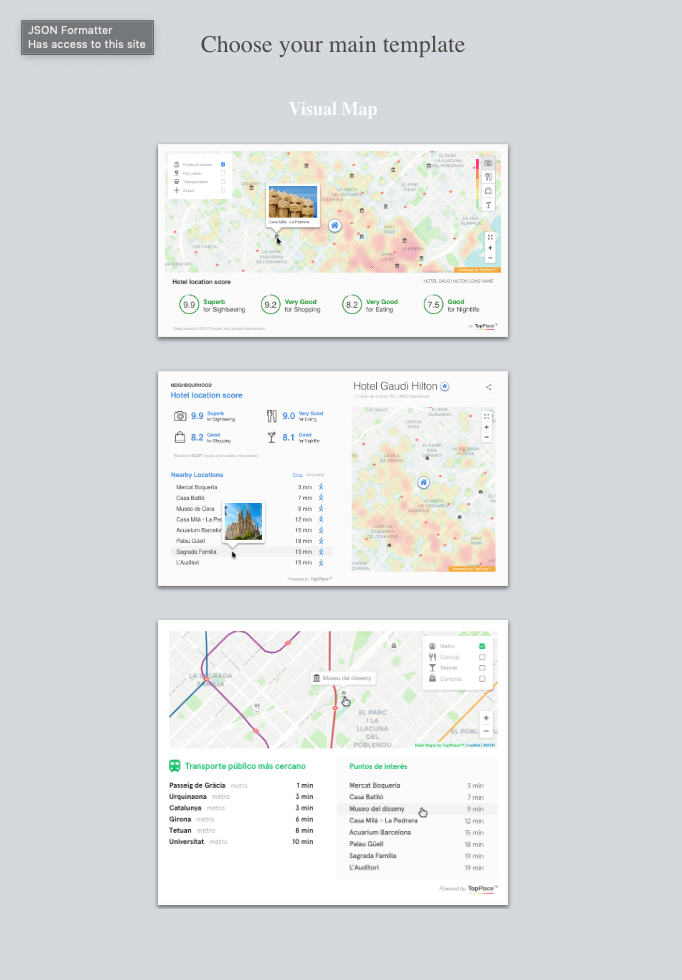
You will have the opportunity to change your template again later. Once you pick a template you will be taken to the customisation screen.
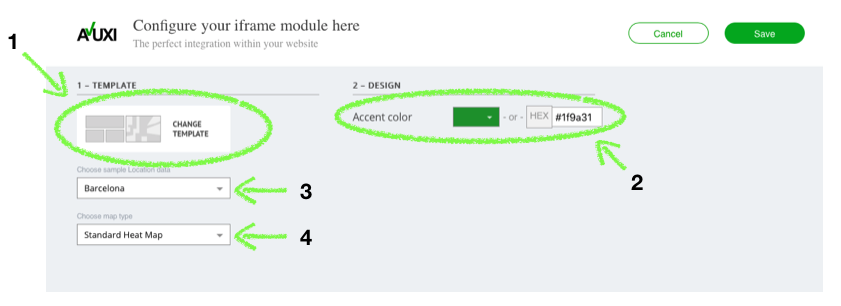
On the customisation screen we find the following elements:
- Swap Template. If you change your mind about which template to use, you can swap here.
- Sample Location Data. Change where the example takes its data from. options are Barcelona, London, New York, Moscow or Hong Kong.
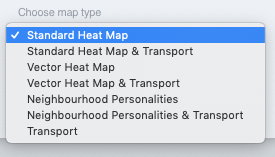
- Map Type. Select the style of map to show in the element. (More info below)
- Accent Color. Style the coloured parts of the Location Page Element.
After you are satisfied with your customisation, click save to finalise your changes and see the integration code.
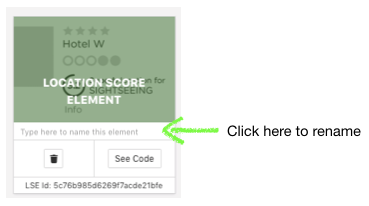
You can rename your element by clicking on the project.
Map Layer Types
There are a variety of different map layer styles to choose from. The details of which are discussed below.
All options can be displayed with or without transport. By selecting transport, users can see nearby train and metro stations.
Standard Heat Map
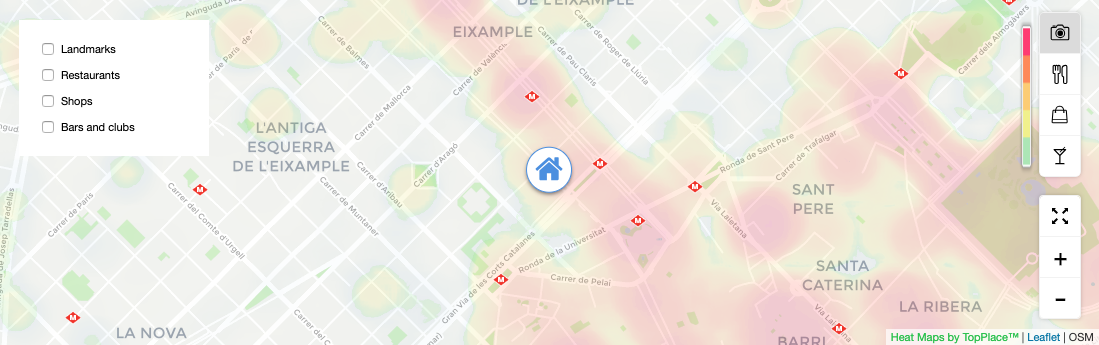
The Standard heat map is a classic red-green heat map that shows location scores visually for an area. Users can sort the visualisations by sightseeing, eating, shopping and nightlife.
Vector Heat Map
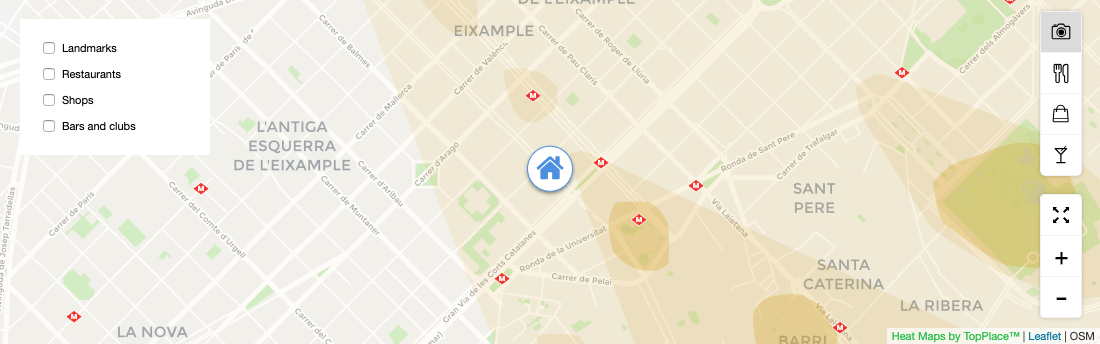
A similar concept to the standard heat map, however, the scores are visualised with polygons as opposed to heat maps.
Neighbourhood Personalities
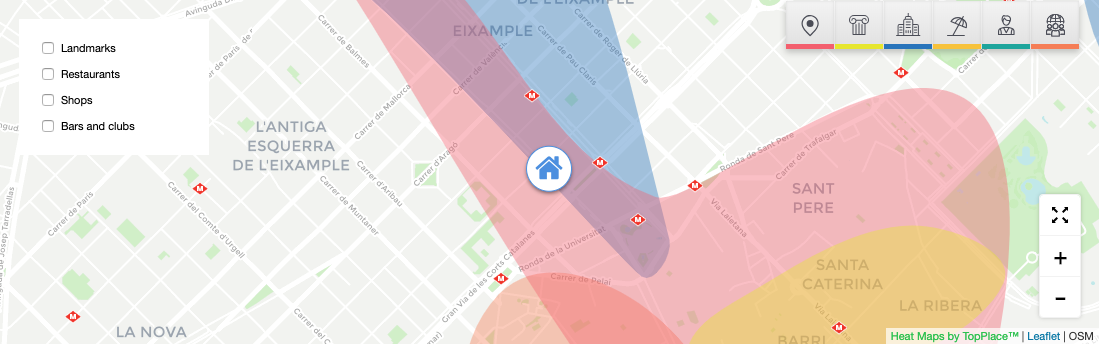
Neighbourhood personalities show the characteristics of an area. For example, with neighbourhood personalities, you can see the true extent of the city centre, or what parts of a city are part of the historic district.
Transport Only
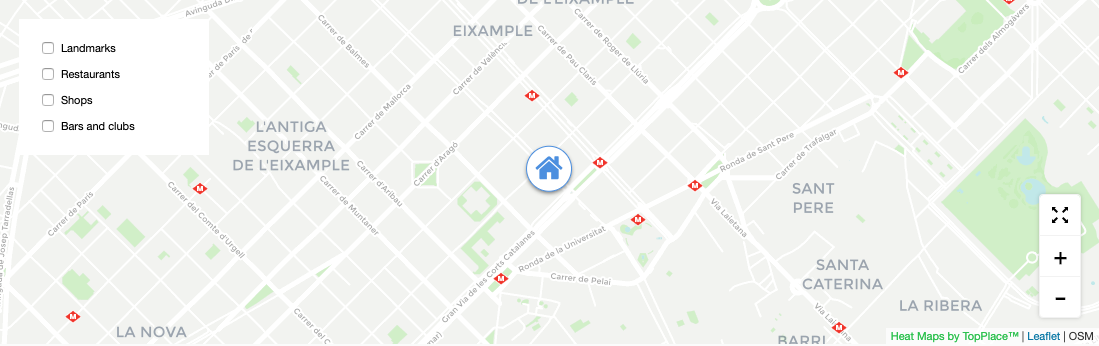
Only shows transport information.
Third Party Frameworks
Avuxi TopPlace™ products can be used with many third-party frameworks, such as React, Vue and Google web components. For more information, take a look at our Github integrations page.
Responsive & mobile displays
TopPlace templates are responsive where applicable. To ensure the template displays correctly on the target screen, ensure the target page is responsive and/or mobile friendly. The TopPlace template will inherit the properties through the CSS.
Integration
To continue with Integration of the Location Page. Please follow the instructions outlined in this documentation.