
Getting Started
Create a Location Page using the Location Page Wizard. For a detailed guide, follow the steps outlined in the support documentation here: http://support.avuxi.com/support/location-page-create-and-style
Once The Location Page Element is created make a note of the Project ID and the Map ID
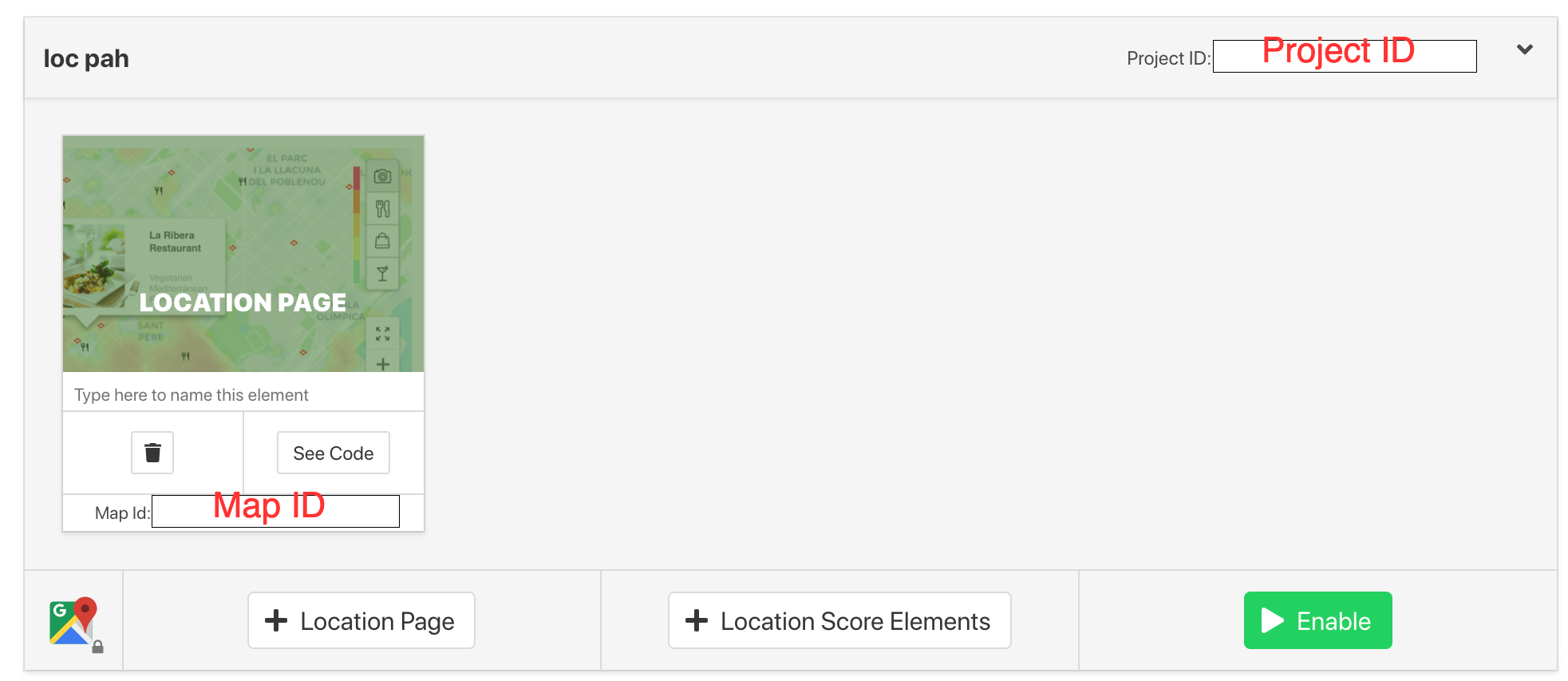
We need these 2 codes for the next steps.
Click on “See Code” to reveal the integration code. This code can be saved in an html file to see a working demo of the Location Page.
Step 1 – Add the Script to Your Page.
The script has all the JS, CSS and SVG needed to render the Location Page. We need to add this script to the page.
The script is "https://m.avuxicdn.com/v3/s/[AVUXI_PROJECT_ID]/en" for the English version.
Please replace the LN in https://m.avuxicdn.com/v3/s/[AVUXI_PROJECT_ID]/LN with the language code of the page.
We also highly recommend loading the script asynchrously using "sc.async". See below for example:
<script type='text/javascript'>
var sc = document.createElement('script');
sc.id = 'vxscript';
sc.type = 'text/javascript';
sc.async = 'async';
sc.src = 'https://m.avuxicdn.com/v3/s/[AVUXI_PROJECT_ID]/en';
document.body.appendChild(sc);
</script>
Step 2 – Add the Location Page
Add a span html tag into the part of the page where you want the element to appear. Below is an example of a Span element:
<span class="vxwic" t="[MAP ID]" ll="41.390847,2.16902"</span>
- "t" is equal to the Map ID is the number we noted earlier after the creation of Location Page.
- "ll" is equal to the latitude and longitude of the location where you wish the Location Page to reference.
Responsive & mobile displays
TopPlace templates are responsive where applicable. To ensure the template displays correctly on the target screen, ensure the target page is responsive and/or mobile friendly. The TopPlace template will inherit the properties through the CSS.