
This document outlines the customisation process for the Location Score Elements.
Before starting the integration, please ensure you have set up your domain by visiting our article setup your domain.
Step 1: Open the Location Score Wizard
Open the Location Score Wizard within the project by pressing the "+ Location Score Element" button within the selected project. 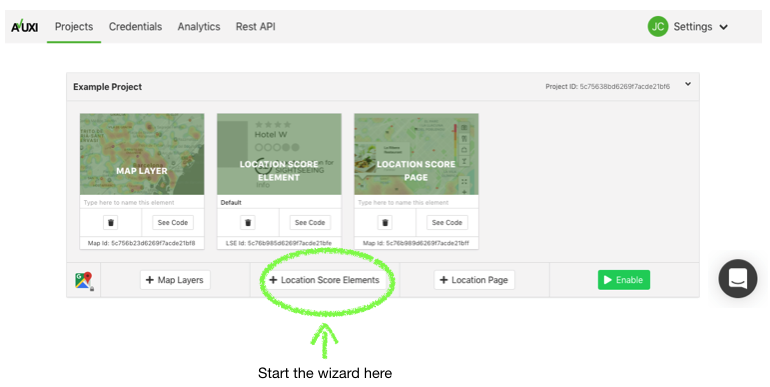
Step 2: Select the template
There are a number of different Location Score Element templates available. Depending on the template, they will display the following information:
- TopPlace™ location score
- Nearby Points of Interest (POIs)
- Nearby Transport
Scroll through the templates and select a template. Then click "Save" to customize and style your template.
The wizard looks like: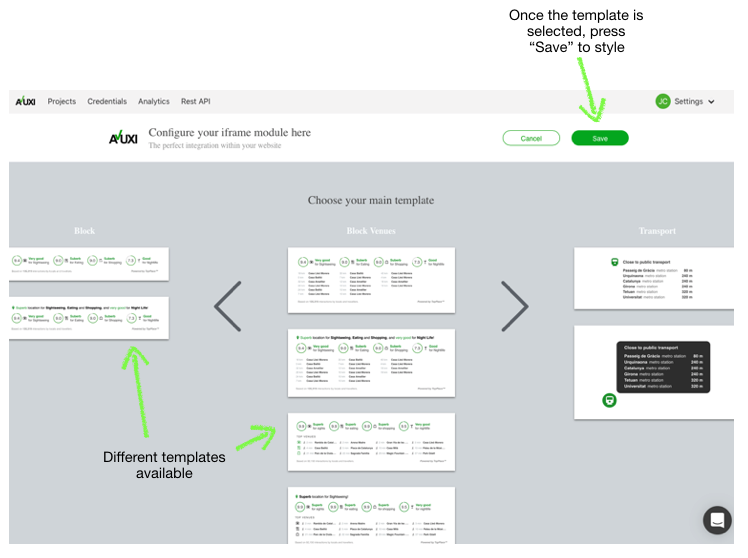
Step 3: Style & Customize your template
After the template is selected, you are able to customize the template and set the default styling. Note: The template will pick up a websites styling through the CSS.
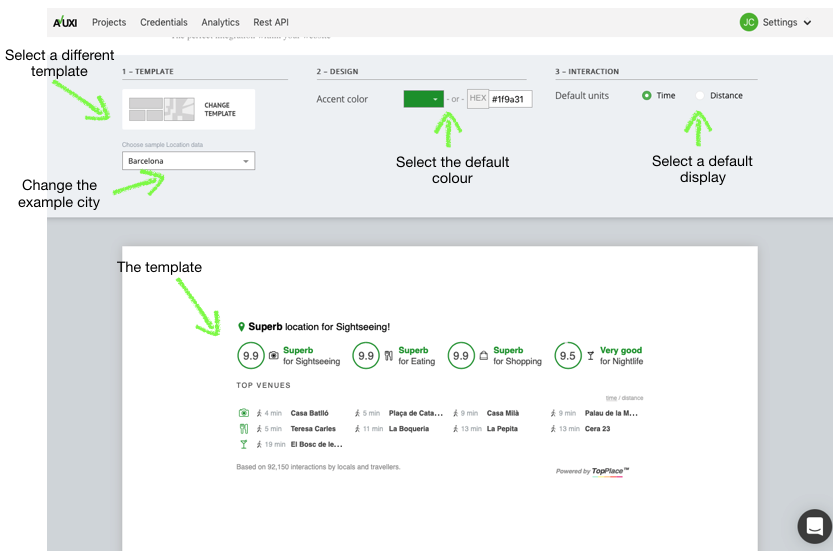
Now that your Location Score Element is ready, don’t forget to save it! Click on “Save”.
Third Party Frameworks
Avuxi TopPlace™ products can be used with many third-party frameworks, such as React, Vue and Google web components. For more information, take a look at our Github integrations page
Integration
To continue with Integration of the Location Score Element. Please follow the instructions outlined in this documentation.